Windows with ArcGIS Pro or ArcGIS Enterprise
Prerequisites
64-bit x86 processor (ARM is not currently supported)
Microsoft Windows 10 or later, or Windows Server 2016 or later
ArcGIS Pro 3.6.0 or later, or ArcGIS Enterprise 12.0 or later
Optional software
These are required to run certain parts of MGET. You can wait to install them later if desired. MGET will report detailed error messages when missing optional software is needed. Be sure to shut down all ArcGIS programs before installing them.
ArcGIS Spatial Analyst extension. This is required by a number of MGET tools produce rasters. If your ArcGIS license includes this extension but you did not install it, you can re-run the ArcGIS setup program to add it to your installation.
MATLAB Runtime R2026a (free) or the full version of MATLAB R2026a (not free). Either one is OK. These are required for front detection, larval dispersal simulation, and certain interpolation tools. You must install version R2026a; other versions will not work. Multiple versions can be installed at the same time, so if you use a different version of MATLAB for your own work, you can continue to do so, providing you install the R2026a Runtime for MGET’s use.
Windows with ArcGIS Pro installation instructions
MGET is a Python package. ArcGIS utilizes conda to manage Python packages, which works best for projects that have been specifically packaged for deployment with conda. We have packaged MGET as the mget3 package on conda-forge. We recommend that ArcGIS Pro users install the conda-forge package rather than installing the corresponding mget3 package on the Python Package Index with pip.
Step 1. Install micromamba
Trying to use the conda that comes with ArcGIS Pro to install MGET is usually
problematic. ArcGIS includes a lot of Python packages by default, but pins
most them to specific versions, preventing them from being upgraded. We
presume this is done to minimize the risk that users will install updates that
are incompatible with arcpy or the packages it relies on. In this
environment, conda is very slow at installing new packages like MGET that
themselves require additional packages that do not come with ArcGIS. Conda can
spend 10 minutes or more stuck with the message “Solving environment”, as it
tries to determine which versions of which packages can be safely installed
without breaking anything.
You can greatly speed up the installation process by using micromamba instead. Micromamba is a stand-alone, drop-in replacement for conda that includes a much faster dependency solver than conda. Installing micromamba does not make any changes to your conda installation.
To install micromamba:
Start Windows PowerShell.
Open micromamba Automatic installation in your browser and copy the Windows PowerShell installation expression. It begins with
Invoke-Expression.Paste that into PowerShell and run it. If are asked “Do you want to initialize micromamba for the shell activate command?”, enter
nunless you know what it means and want to do it.Close PowerShell.
Step 2. Clone the arcgispro-py3 environment
We strongly advise you not to install MGET or its dependencies into the
default arcgispro-py3 environment that ArcGIS Pro creates when it
installs. Instead:
Follow ESRI’s instructions to clone
arcgispro-py3to a new environment. In these instructions, we’ll assume your copy is calledarcgispro-py3-mget. Alternatively, if you already have another environment you wish to use, you can skip this step.Activate the new environment you created, or the existing one you want to use.
Step 3. Install MGET
Click Start, open the ArcGIS folder, and start the Python Command Prompt. It should show your desired environment as part of the command prompt, similar to this:
(arcgispro-py3-mget) C:\Users\Jason\AppData\Local\ESRI\conda\envs\arcgispro-py3-mget>
Run the following command to install the packages:
micromamba install --channel esri --channel conda-forge mget3
If you did not install micromamba in step 1 and want to try the conda that comes with ArcGIS Pro, replace
micromambawithconda(we don’t recommend this). Review the changes that micromamba or conda proposes, then press Enter to approve them and install MGET. If you have any questions, please post them to the discussion forum.
Step 4. Add the MGET toolbox to ArcGIS Pro
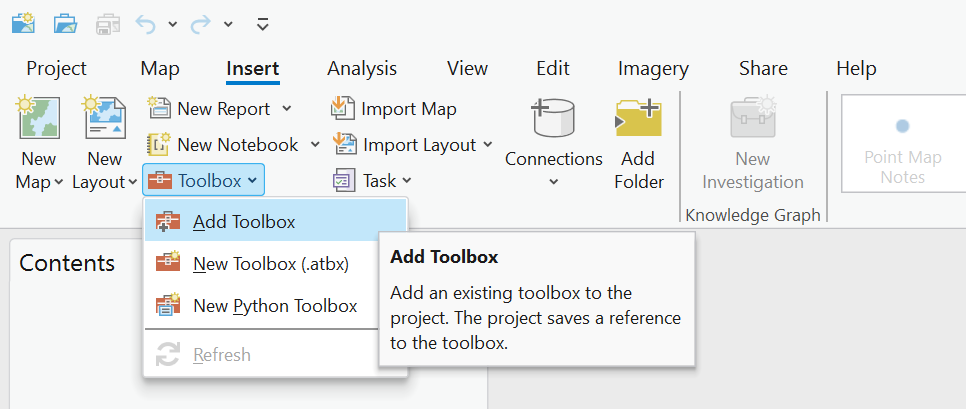
To use MGET’s geoprocessing tools from ArcGIS Pro, you need to add the toolbox to an ArcGIS Pro project:
Select the Insert ribbon and find the Toolbox drop-down menu. Then select Add Toolbox:
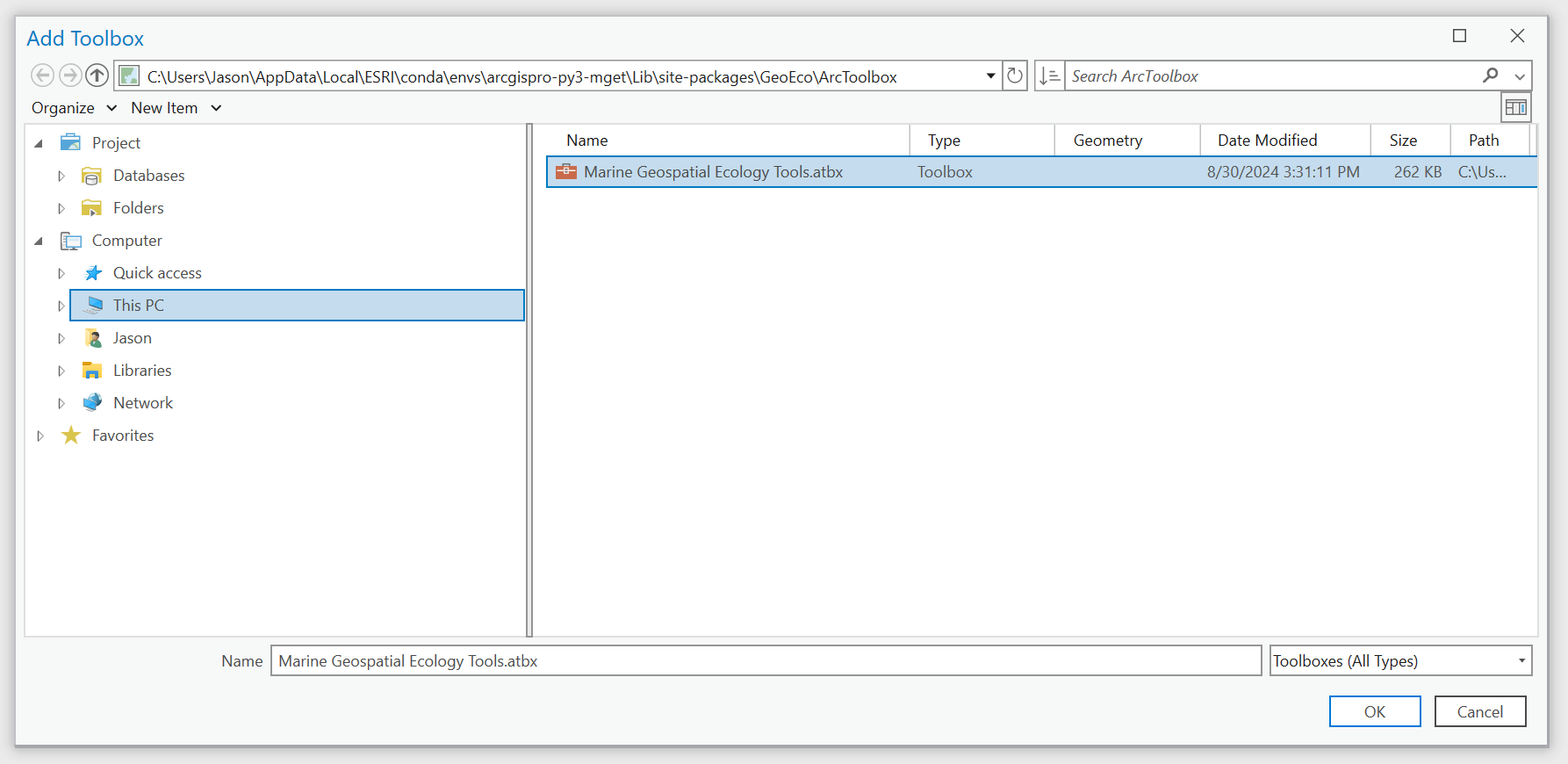
In the Add Toolbox dialog box, navigate to the folder that contains your Python environment. Typically this is a subfolder of the
C:\Users\<username>\AppData\Local\ESRI\conda\envsfolder. In the example below, the environment subfolder is namedarcgispro-py3-mget. Inside that subfolder, navigate toLib\site-packages\GeoEco\ArcGISToolbox. Select the fileMarine Geospatial Ecology Tools.tbxand click OK:
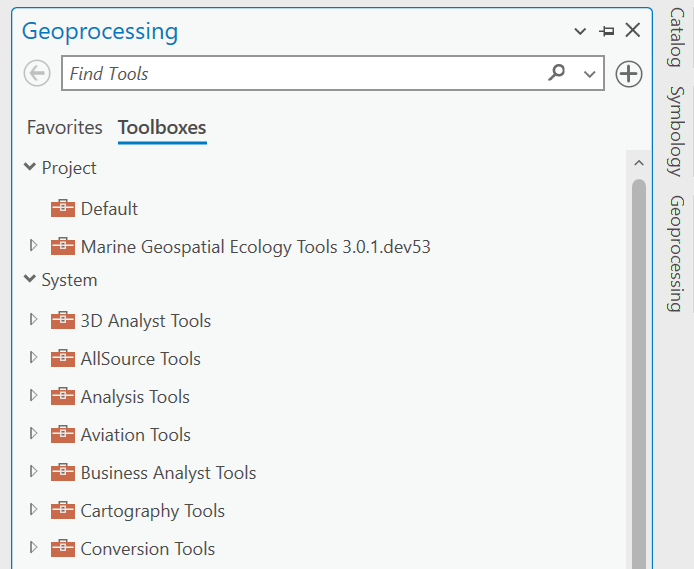
Now you can access the toolbox from the Geoprocessing pane. After opening the Geoprocessing pane, click on Toolboxes and then drill into the toolbox to find tools of interest. Alternatively, you can search for tools by name in the Find Tools box:
Click here for some examples of using MGET’s geoprocessing tools.
Uninstalling MGET
MGET may be uninstalled like any other conda package:
Close all ArcGIS programs.
If necessary, activate the environment you want to uninstall MGET from. If that environment is already activated, you can skip this step.
Click Start, open the ArcGIS folder, and start the Python Command Prompt. It should show your desired environment as part of the command prompt, similar to this:
(arcgispro-py3-mget) C:\Users\Jason\AppData\Local\ESRI\conda\envs\arcgispro-py3-mget>
Run the following command to uninstall MGET. Replace
micromambawithcondaif you did not install micromamba in Step 1:micromamba remove --yes mget3
Alternatively, if you no longer need the conda environment, you can just delete the environment. There is no need to uninstall MGET from it first.
Windows with ArcGIS Enterprise installation instructions
In principle, MGET should work on ArcGIS Enterprise so long as the prerequisite Python packages have been installed, as described above in the Windows with ArcGIS Pro installation instructions. ESRI provides some guidance on installing Python packages on ArcGIS Server for Windows in this article But we have not tested this yet so we don’t know for sure. We’ll update this documentation once we have the opportunity to try it.