Adding MGET’s toolbox to ArcGIS Pro
To access MGET’s geoprocessing tools from ArcGIS Pro, you need to add the toolbox to an ArcGIS Pro project:
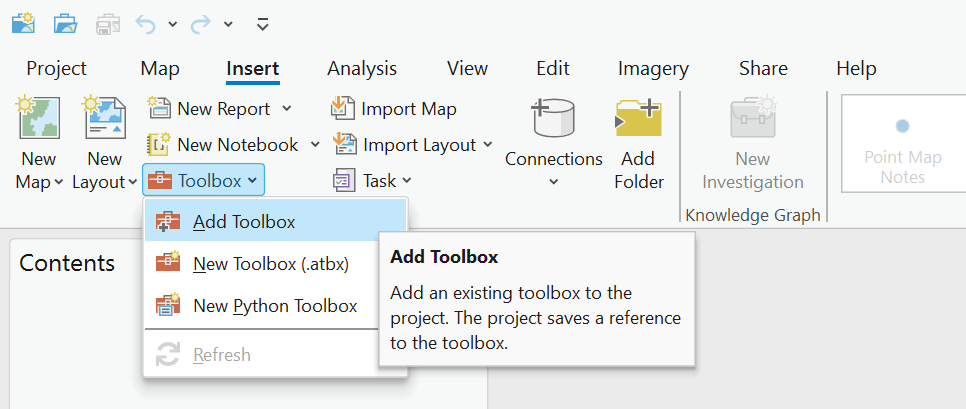
Select the Insert ribbon and find the Toolbox drop-down menu. Then select Add Toolbox:
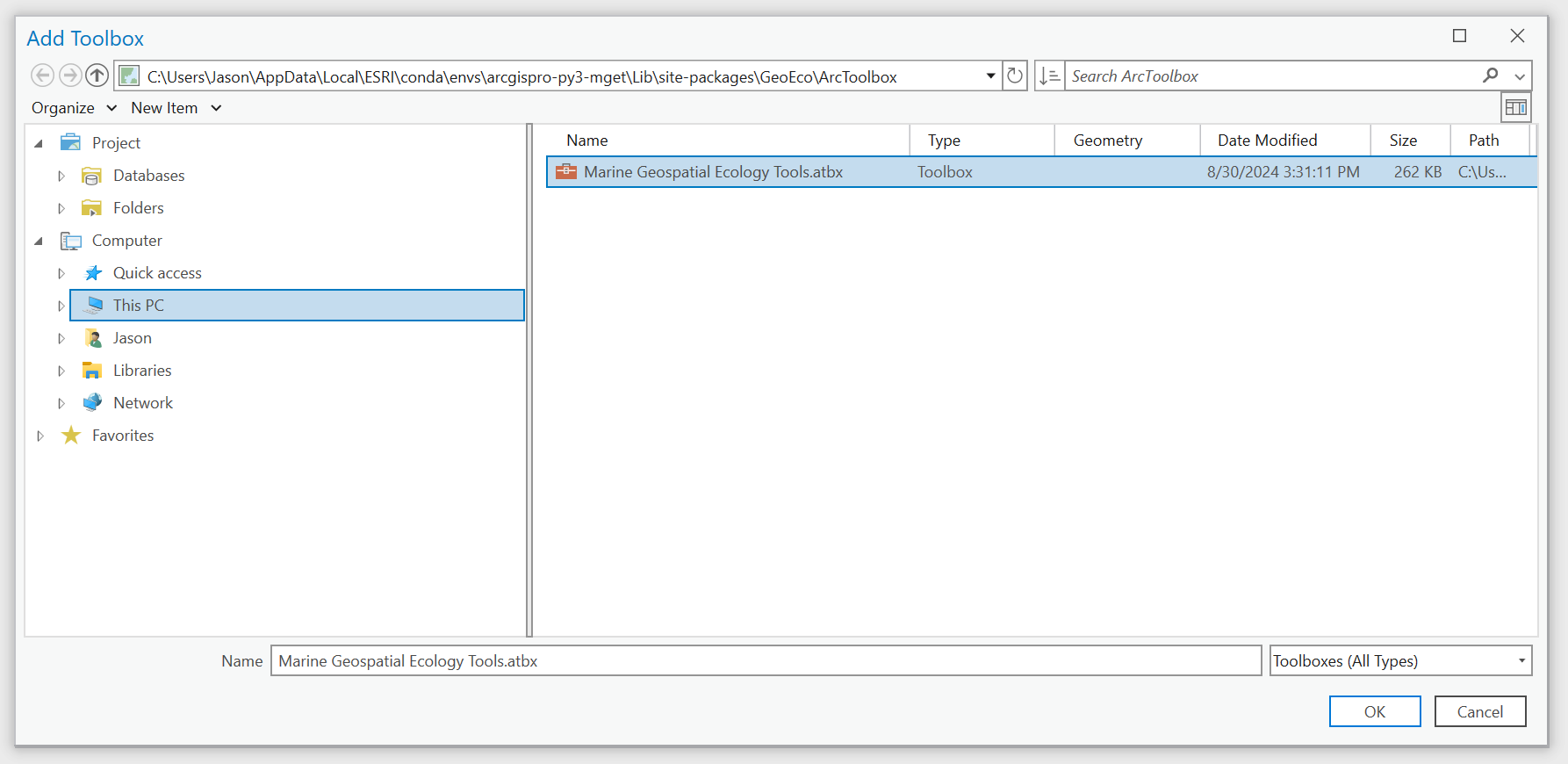
In the Add Toolbox dialog box, navigate to the folder that contains your Python environment. Typically this is a subfolder of the
C:\Users\<username>\AppData\Local\ESRI\conda\envsfolder. In the example below, the environment subfolder is namedarcgispro-py3-mget. Inside that subfolder, navigate toLib\site-packages\GeoEco\ArcGISToolbox. Select the fileMarine Geospatial Ecology Tools.tbxand click OK:
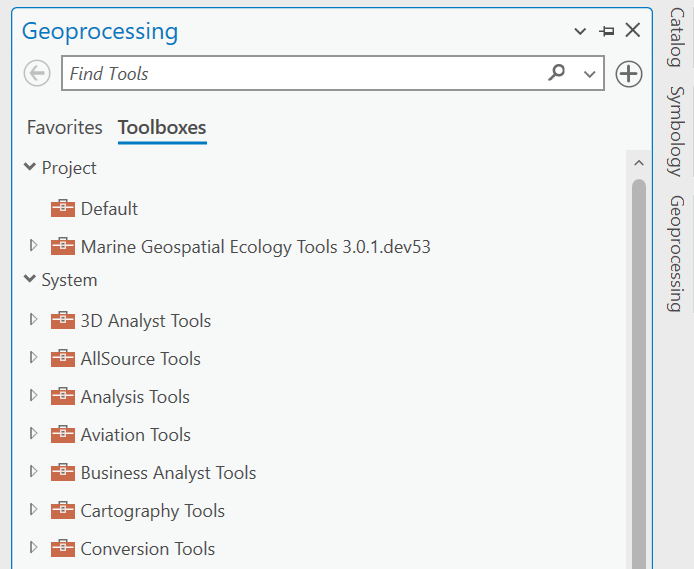
Now you can access the toolbox from the Geoproessing pane. After opening the Geoprocessing pane, click on Toolboxes and then drill into the toolbox to find tools of interest. Alternatively, you can search for tools by name in the Find Tools box: